

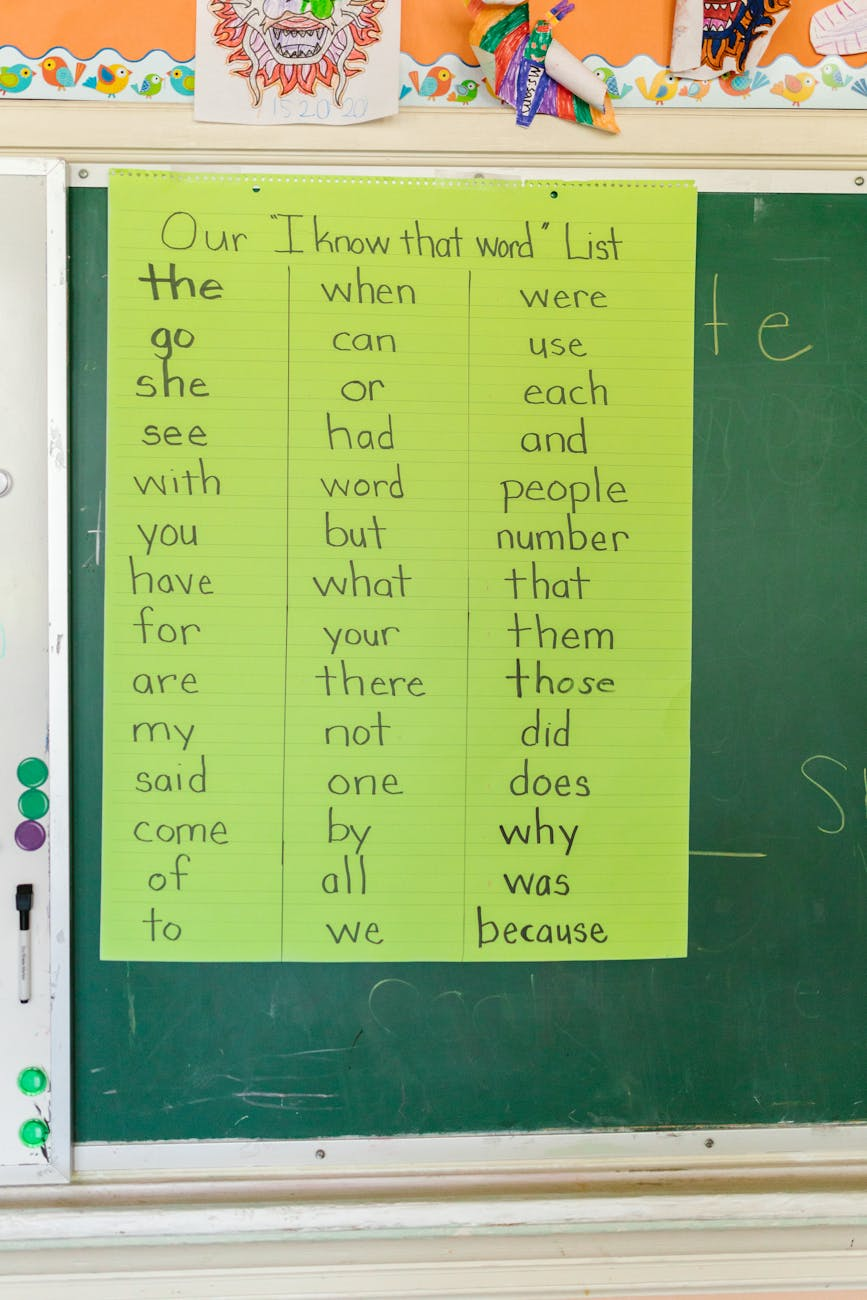
1. Make Students the “Owners” of the Words
Instead of pre-making everything, involve students.
Ideas:
- Students add:
- Definitions in their own words
- Visuals or symbols
- Sentence examples
- Use sticky notes or index cards so entries can be revised.
- Assign rotating “Word Wall Managers” to update and maintain it.
👉 Why it works: Ownership increases retention and engagement.
2. Use Color-Coding for Meaning
Color adds instant interaction and organization.
Examples:
- Blue = academic vocabulary
- Green = verbs
- Yellow = concepts
- Pink = sentence starters
- Red dot = “frequently tested”
Students can:
- Add color stickers
- Highlight parts of speech
- Sort words by color during activities
3. Add Movement-Based Activities
Get students up and using the wall.
Quick activities:
- Word Wall Scavenger Hunt – “Find a word that means…”
- Point & Prove – Students point to a word and explain it.
- Stand by the Word – Students stand next to a word they think fits a question or prompt.
- Vocabulary Relay – Teams race to match definitions or examples to words.
4. Make It a Daily Instructional Tool
Reference it constantly—not just during vocab lessons.
Ways to embed it:
- Require students to use 2–3 word wall terms in:
- Exit tickets
- Writing responses
- Discussions
- Say: “Check the word wall before you ask me.”
- Use it during:
- Warm-ups
- Bell ringers
- Think-pair-share
5. Add Interactive Elements
Turn it into a living resource.
Low-prep options:
- Flip cards (definition under the word)
- QR codes linking to:
- Student-made videos
- Examples
- Digital flashcards
- Velcro or magnets to move words around
- “Add a Connection” sticky notes (synonym, antonym, example)
6. Connect It to Writing & Speaking
This is where word walls really pay off.
Strategies:
- Sentence frames posted near the wall
- “Word Wall Challenge”:
- Bronze: use 1 word
- Silver: use 3 words
- Gold: use 5 words accurately
- Peer check: highlight word wall words used in writing
7. Refresh and Reflect
Avoid clutter and burnout.
Keep it effective by:
- Removing old words after assessments
- Creating a “Retired Words” section
- Having students vote on:
- Most confusing word
- Most useful word
- Word they want added next
8. Go Digital (Optional or Hybrid)
Perfect for small classrooms or tech-heavy settings.
Options:
- Google Slides or Jamboard word wall
- Padlet or Canva
- QR code linking to a class word wall
Students can comment, add examples, or insert images.